I’m Tejas Hingu, a full stack developer, and for Diwali I turned an e-commerce client’s products into lanterns on their Shopify store. This tutorial is the same idea as a Diwali animation in HTML, CSS and a little JavaScript. Scroll down and a garland drops in under the sticky navigation. Every lantern is a cut-out of a real product, and you can swing them with your mouse.
The short version of how it works: the garland is one position: fixed element with pointer-events: none, JavaScript only creates the lanterns the first time the header goes sticky, and a small spring simulation writes the CSS rotate property. In my test page it caused no layout shift at all, and swinging the lanterns triggered no layouts.
Try it right here. Scroll inside the box until the garland drops in, move your mouse across the lanterns, then press an Add to cart button.
How is a swinging lantern gamification?
When I searched for gamification in ecommerce examples, I mostly found spin wheels, scratch cards, points and leaderboards. All of those ask the shopper to do something for a reward. This sits at the small end of that idea. It’s a toy. There’s no score and no email gate, and the thing you play with is the product itself.
That was the whole reason for using product cut-outs instead of generic paper lanterns. Someone flicking their mouse across the header is handling the products for a few seconds without being asked to. Then, when they add something to the cart, the button answers with a little burst of sparks, like a phuljhadi.
I don’t have a conversion number to share, so I won’t pretend this sells more. What I can tell you is how to build it so it doesn’t slow the store down or get in the way of buying.
My first attempt was different, by the way. I put small flames on the product photos inside a card section on the home page, and I removed that before it ever went live. The physics from that experiment is what ended up driving the lanterns.
What do you need before you start?
You need a site with a sticky header that gets a class when it sticks, and a few product photos cut out on a transparent background. Export them as WebP at the same height. I used 320px, which came to about 6 KB per image on the real store, and that’s already more than you need for a lantern that shows at 48px tall.
The HTML is a single empty element straight after your header. The JSON in data-products holds each image and its width at 320px tall.
<header id="site-header"><!-- your logo and navigation --></header>

<div class="garland" aria-hidden="true" data-garland
  data-products='[{"src":"product-a.webp","w":130},{"src":"product-b.webp","w":160},{"src":"product-c.webp","w":116}]'></div>
Load the CSS in the head, and the two scripts at the end of the body. The garland script expects your header to have the id site-header and to get the class is-sticky when it sticks, so change those two names to match your theme. If you’re trying this on a blank page, this is all the sticky logic you need:
<script>
  const siteHeader = document.getElementById('site-header');
  window.addEventListener('scroll', function () {
    siteHeader.classList.toggle('is-sticky', window.scrollY > 100);
  }, { passive: true });
</script>
How do you build the garland and lanterns in CSS?
This is the full stylesheet for the garland. The part to look at is the first rule. position: fixed takes the garland out of the page flow, so it can’t push anything around, and pointer-events: none means it can never block a click on whatever is underneath it. overflow: clip keeps a swinging lantern from sticking out past the box, and the overflow: hidden line above it is the fallback for older browsers.
:root {
  --lantern-h: 30px;
  --lantern-gap: 76px;
  --string: #d4a447;
  --bead: #f08a1c;
}

@media (min-width: 750px) {
  :root {
    --lantern-h: 48px;
    --lantern-gap: 140px;
  }
}

.garland {
  position: fixed;
  top: var(--garland-top, 0px);
  left: 0;
  right: 0;
  z-index: 999; /* your header should be above this */
  height: calc(var(--lantern-h) * 1.4 + 52px);
  overflow: hidden;
  overflow: clip;
  pointer-events: none;
}

.garland__row {
  display: flex;
  justify-content: center;
}

.garland__unit {
  position: relative;
  flex: 0 0 var(--lantern-gap);
  height: 20px;
}

.garland__swag {
  position: absolute;
  inset: 0;
  background: var(--swag) no-repeat 0 0 / 100% 100%;
  transform: translateY(-24px);
  transition: transform 0.5s ease 0.05s;
}

.garland__lantern {
  position: absolute;
  top: 1px;
  left: 0;
  translate: -50% 0;
  transform: translateY(-101%);
  transform-origin: 50% 0;
  transition: transform 0.35s ease-in;
}

.garland.is-shown .garland__swag {
  transform: none;
}

.garland.is-shown .garland__lantern {
  transform: none;
  transition: transform 1.1s cubic-bezier(0.34, 1.3, 0.64, 1) var(--delay, 0s);
}

.garland__sway {
  display: flex;
  flex-direction: column;
  align-items: center;
  transform-origin: 50% 0;
  animation: garland-sway var(--sway, 4.6s) ease-in-out infinite alternate;
}

.garland:not(.is-shown) .garland__sway {
  animation-play-state: paused;
}

@keyframes garland-sway {
  from { transform: rotate(-2.5deg); }
  to { transform: rotate(2.5deg); }
}

.garland__string {
  display: block;
  width: 1px;
  height: var(--drop, 8px);
  background: var(--string);
}

.garland__ring {
  display: block;
  width: 6px;
  height: 6px;
  margin-bottom: -1px;
  border: 1.5px solid var(--string);
  border-radius: 50%;
}

.garland__body {
  position: relative;
  display: block;
  height: var(--lantern-h);
  line-height: 0;
}

.garland__halo {
  position: absolute;
  left: 50%;
  top: 50%;
  width: calc(var(--lantern-h) * 1.2);
  height: calc(var(--lantern-h) * 1.2);
  translate: -50% -50%;
  border-radius: 50%;
  background: radial-gradient(circle closest-side, rgba(255, 190, 90, 0.4), rgba(255, 160, 60, 0.12) 55%, rgba(255, 160, 60, 0));
}

.garland__img {
  position: relative;
  display: block;
  width: auto;
  max-width: none;
  height: 100%;
  filter: sepia(0.22) saturate(1.15) brightness(1.06) drop-shadow(0 0 3px rgba(255, 196, 100, 0.8)) drop-shadow(0 0 8px rgba(255, 160, 60, 0.35));
}

.garland__tassel {
  display: block;
  width: calc(var(--lantern-h) * 0.2);
  height: calc(var(--lantern-h) * 0.3);
  margin-top: -1px;
  overflow: visible;
  fill: var(--string);
  stroke: var(--string);
  stroke-width: 1.1;
  stroke-linecap: round;
}

@media (prefers-reduced-motion: reduce) {
  .garland__swag,
  .garland__lantern,
  .garland.is-shown .garland__lantern {
    transition: none;
  }

  .garland__sway {
    animation: none;
  }
}
A garland like this is a toran, the decoration you hang over a doorway at festivals. Each lantern is a string, a ring, the product image with a soft glow behind it, and a tassel.
The filter on the image is doing the “lit from inside” look. It warms the photo a little and adds a gold glow around the edge. It never changes after the first paint, so moving the lantern doesn’t make the browser recalculate it.
Why use the separate rotate and translate properties?
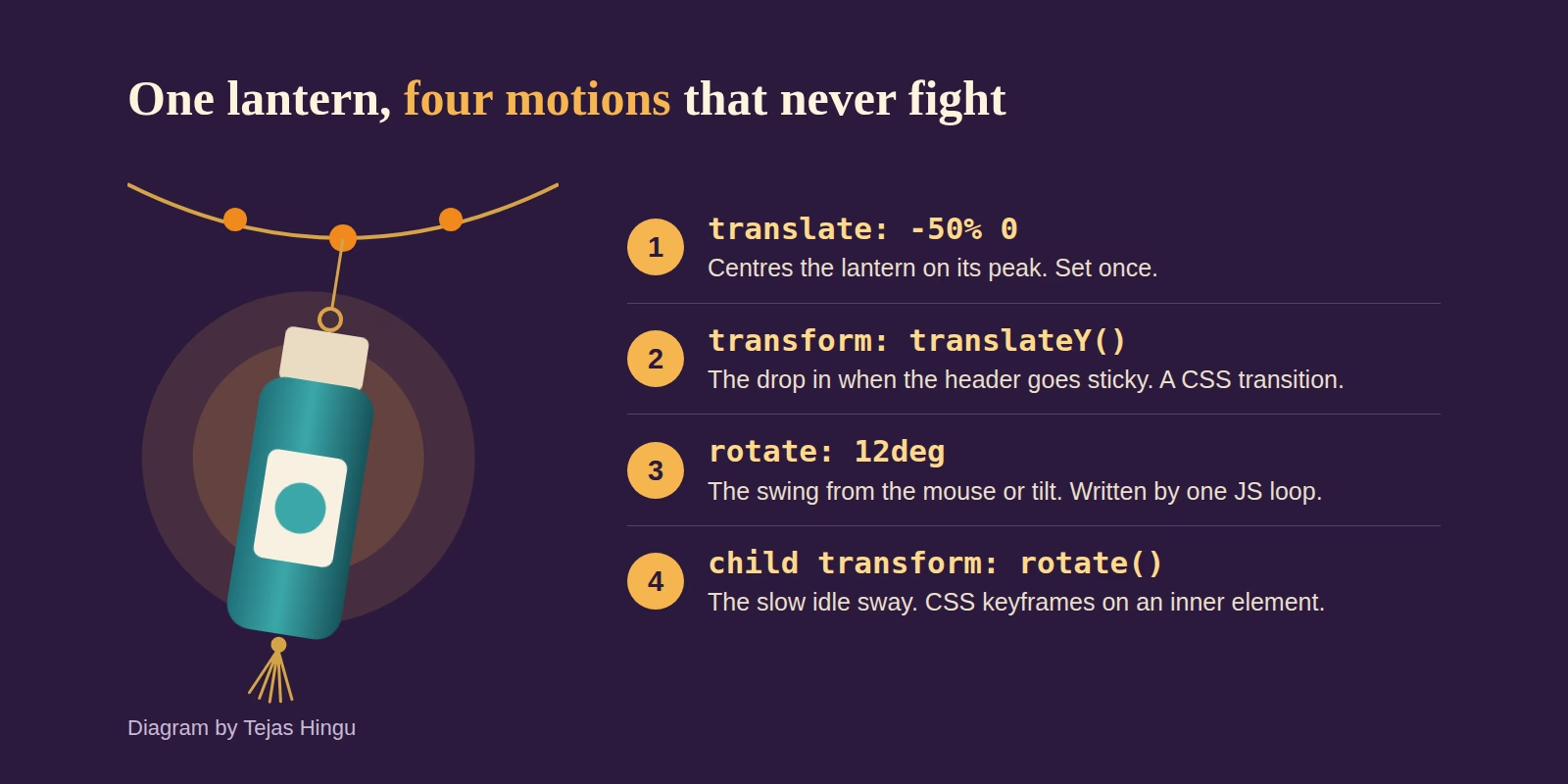
Because one lantern needs four different motions, and they’d overwrite each other if they all lived in transform.
translate: -50% 0 centres the lantern on the point it hangs from. transform handles the drop in, through a CSS transition. rotate is what the JavaScript writes for the swing. The inner .garland__sway element has its own transform for the slow idle sway. The browser combines translate, rotate and transform on the same element in that order, so the script can change rotate 60 times a second while the transition on transform is still running, and neither one notices the other.
How do you create the lanterns only when they’re needed?
Nothing is built until the visitor has scrolled far enough for the header to go sticky. On my test page there were no lantern elements and no lantern image requests before scrolling. After scrolling there were 13 lanterns at 1280px wide and only 3 image requests, because the images repeat.
Everything from here to the end of the JavaScript section goes into one file, garland.js, in this order.
(function () {
  const root = document.querySelector('[data-garland]');
  if (!root) return;

  const products = JSON.parse(root.dataset.products);
  const drops = [4, 16, 8, 20, 6];
  const reduceMotion = window.matchMedia('(prefers-reduced-motion: reduce)');
  const header = document.getElementById('site-header');

  let row = null;
  let units = 0;
  let spacing = 0;
  let swings = [];

  function cssNumber(name) {
    return parseFloat(getComputedStyle(root).getPropertyValue(name)) || 0;
  }

  function swagUrl(w) {
    const style = getComputedStyle(root);
    const string = style.getPropertyValue('--string').trim();
    const bead = style.getPropertyValue('--bead').trim();
    // A curve from peak to peak. Along it, x = w * t and y = 2 + 36 * t * (1 - t).
    const beads = (w < 100 ? [0.5] : [0.25, 0.5, 0.75]).map(function (t) {
      return `<circle cx='${w * t}' cy='${2 + 36 * t * (1 - t)}' r='3.4' fill='${bead}'/>`;
    }).join('');
    const svg = `<svg xmlns='http://www.w3.org/2000/svg' width='${w}' height='20' viewBox='0 0 ${w} 20'>` +
      `<path d='M0 2Q${w / 2} 20 ${w} 2' fill='none' stroke='${string}' stroke-width='1.4'/>${beads}</svg>`;
    return `url("data:image/svg+xml,${encodeURIComponent(svg)}")`;
  }

  function lanternHtml(i) {
    const product = products[i % products.length];
    const sway = (4 + (i % 4) * 0.55).toFixed(2);
    return `<span class="garland__swag"></span>
      <span class="garland__lantern"><span class="garland__sway" style="--sway:${sway}s">
        <span class="garland__string" style="--drop:${drops[i % drops.length]}px"></span>
        <span class="garland__ring"></span>
        <span class="garland__body"><span class="garland__halo"></span>
          <img class="garland__img" src="${product.src}" width="${product.w}" height="320" alt="" decoding="async">
        </span>
        <svg class="garland__tassel" viewBox="0 0 20 30" focusable="false"><circle cx="10" cy="3" r="2.6"/>
          <path d="M10 5.5 L4.5 29 M10 5.5 L7.3 29.5 M10 5.5 V30 M10 5.5 L12.7 29.5 M10 5.5 L15.5 29"/></svg>
      </span></span>`;
  }
The garland’s curve is an SVG drawn at the exact spacing, so it never gets stretched. It’s wrapped in encodeURIComponent because the # in a hex colour would otherwise end the data URL early.
build() makes enough lanterns to overfill the screen by one on each side, and it only ever adds more, so a resize doesn’t throw anything away.
  function build() {
    spacing = cssNumber('--lantern-gap') || 120;
    root.style.setProperty('--swag', swagUrl(spacing));

    // One extra on each side, and always odd so the row looks centred on the screen.
    let need = Math.ceil(window.innerWidth / spacing) + 2;
    if (need % 2 === 0) need += 1;
    if (row && need <= units) return;

    if (!row) {
      row = document.createElement('div');
      row.className = 'garland__row';
      root.appendChild(row);
    }

    let html = '';
    for (let i = units; i < need; i++) {
      html += `<span class="garland__unit">${lanternHtml(i)}</span>`;
    }
    row.insertAdjacentHTML('beforeend', html);
    units = need;

    swings = Array.from(row.querySelectorAll('.garland__lantern'), function (el) {
      return { el: el, angle: 0, velocity: 0 };
    });

    // Ripple the drop out from the middle of the screen.
    const mid = (swings.length - 1) / 2;
    swings.forEach(function (swing, i) {
      swing.el.style.setProperty('--delay', (0.15 + Math.abs(i - mid) * 0.07).toFixed(2) + 's');
    });
  }

  function place() {
    root.style.setProperty('--garland-top', (header ? header.offsetHeight : 0) + 'px');
  }
One thing that caught me out when I rebuilt this for the article: keeping the count odd centres the row, but it doesn’t put a lantern in the exact middle of the screen. Lanterns hang from the left edge of their unit, so the centre of the screen gets the lowest point of a swag and the nearest lantern sits half a gap to the left. It looks fine, and I left it alone.
How do you make a swing animation with CSS and JavaScript?
For the idle movement, plain CSS is enough. That’s the garland-sway keyframes above, running with alternate so the lantern goes back and forth, and each lantern gets a slightly different duration so they don’t move in step.
A swing animation in CSS can’t react to how hard something was pushed, though, so the interactive part is a small pendulum simulation. Each lantern stores an angle and a velocity, and every frame the velocity gets a pull back toward rest and a bit of friction.
  let tilt = 0;
  let frame = 0;
  let last = 0;
  let shown = false;

  function clamp(value, max) {
    return value > max ? max : value < -max ? -max : value;
  }

  function wake() {
    if (!frame && shown && !reduceMotion.matches) {
      last = 0;
      frame = requestAnimationFrame(tick);
    }
  }

  function tick(now) {
    frame = 0;
    const dt = last ? Math.min((now - last) / 1000, 1 / 30) : 1 / 60;
    last = now;
    let moving = false;

    for (const swing of swings) {
      swing.velocity += (-30 * (swing.angle - tilt) - 1.3 * swing.velocity) * dt;
      swing.angle = clamp(swing.angle + swing.velocity * dt, 35);
      if (Math.abs(swing.angle - tilt) > 0.05 || Math.abs(swing.velocity) > 0.05) moving = true;
      swing.el.style.rotate = swing.angle.toFixed(2) + 'deg';
    }

    if (moving) frame = requestAnimationFrame(tick);
  }

  function kick(i, velocity) {
    if (swings[i]) swings[i].velocity = clamp(swings[i].velocity + velocity, 180);
  }
The 30 is the stiffness and the 1.3 is the friction. A stiffness of 30 gives one full swing about every 1.15 seconds (2π divided by the square root of 30), which looks right for something light on a string. Capping dt at 1/30 of a second stops the lanterns from jumping if the tab stalls.
Notice the loop stops itself. tick only asks for another frame while something is still moving, so an idle page isn’t running JavaScript every frame. After one fast mouse sweep in my test, the writes stopped after about 10 seconds. I also counted layouts through Chrome DevTools while the lanterns were swinging, and the count didn’t go up once.
How do lanterns react to the mouse with pointer-events: none?
They can’t receive events, so I don’t ask them to. One pointermove listener on the window works out which lantern the pointer is near with plain arithmetic, because every lantern is exactly one spacing apart.
  let lastX = null;
  let lastTime = 0;

  function onPointerMove(event) {
    if (!shown || reduceMotion.matches || !swings.length) return;

    const time = event.timeStamp;
    const speed = lastX === null || time - lastTime > 100 ? 0 : (event.clientX - lastX) / Math.max(time - lastTime, 1);
    lastX = event.clientX;
    lastTime = time;

    const top = cssNumber('--garland-top');
    if (!speed || event.clientY < top || event.clientY > top + root.offsetHeight) return;

    // Each lantern hangs from the left edge of its unit, and the row is centred.
    const left = (window.innerWidth - units * spacing) / 2;
    const i = Math.round((event.clientX - left) / spacing);
    if (Math.abs(event.clientX - (left + i * spacing)) > Math.max(spacing * 0.35, 24)) return;

    kick(i, -speed * 45);
    kick(i - 1, -speed * 14);
    kick(i + 1, -speed * 14);
    wake();
  }
The pointer’s speed becomes a kick to that lantern, with a smaller kick to its neighbours so they jostle. The minus sign is there because a negative rotate moves the bottom of the lantern to the right, the same way the mouse is going. In my test, a sweep to the right put the lantern under the pointer at about -19 degrees, both neighbours at about -6, and the ones further out stayed at 0.
Touch is more limited. Once the browser decides a finger is scrolling the page, it takes over and fires pointercancel, so a finger only gets a short swing. That’s the reason I added tilt.
How do you make the lanterns react to phone tilt?
Read gravity from devicemotion and rotate the lanterns the opposite way, so they keep hanging straight down while the phone leans.
  function onDeviceMotion(event) {
    const g = event.accelerationIncludingGravity;
    if (!g || g.x == null || g.y == null) return;

    let target = 0;
    // Skip the phone lying flat, when x and y are both close to zero.
    if (g.x * g.x + g.y * g.y > 9) target = clamp(Math.atan2(g.x, g.y) * 180 / Math.PI, 35);

    const next = tilt + (target - tilt) * 0.15;
    if (Math.abs(next - tilt) > 0.02) {
      tilt = next;
      wake();
    }
  }
atan2(g.x, g.y) turns the two gravity values into an angle. The 0.15 smooths out sensor noise, and the check on x and y ignores a phone lying flat on a table, where the angle wouldn’t mean anything.
iPhones only send devicemotion after the site calls DeviceMotionEvent.requestPermission() from a tap. I never ask, because a permission prompt for a decoration is a bad trade. So this part is Android only, and iPhones just get the idle sway.
I tested the maths by sending made-up sensor values to the page, which is not the same as holding a phone. A 17.88 degree lean settled at -17.73, a very steep lean stopped near the 35 degree limit, and a flat phone came back to about 0.
How do you show the garland only when the header is sticky?
Watch the header’s class with a MutationObserver. The theme already works out when the header sticks, so there’s no reason to run a second scroll calculation. This is the last part of garland.js.
  function setShown(on) {
    if (on === shown) return;
    shown = on;

    if (on) {
      build();
      place();
      // Two frames, so the hidden state paints before the transition starts.
      requestAnimationFrame(function () {
        requestAnimationFrame(function () {
          root.classList.add('is-shown');
        });
      });
      window.addEventListener('pointermove', onPointerMove, { passive: true });
      if ('DeviceMotionEvent' in window && !reduceMotion.matches) {
        window.addEventListener('devicemotion', onDeviceMotion, { passive: true });
      }
    } else {
      root.classList.remove('is-shown');
      window.removeEventListener('pointermove', onPointerMove);
      window.removeEventListener('devicemotion', onDeviceMotion);
      lastX = null;
    }
  }

  function isSticky() {
    return header.classList.contains('is-sticky');
  }

  new MutationObserver(function () {
    setShown(isSticky());
  }).observe(header, { attributes: true, attributeFilter: ['class'] });

  setShown(isSticky());

  let resizeQueued = false;
  window.addEventListener('resize', function () {
    if (!shown || resizeQueued) return;
    resizeQueued = true;
    requestAnimationFrame(function () {
      resizeQueued = false;
      build();
      place();
    });
  }, { passive: true });
})();
The two nested requestAnimationFrame calls are there so the browser paints the hidden state once before is-shown is added. Without a painted starting point, the drop in has nothing to transition from.
The pointer and motion listeners only exist while the garland is showing, and the sway pauses when it folds away at the top of the page. If your theme doesn’t toggle a class, use a scroll listener wrapped in requestAnimationFrame and check window.scrollY in isSticky() instead.
How do you add a sparkle add to cart animation?
Use one delegated click listener on the document, and add a small fixed element at the point of the click. Here’s the CSS, which goes at the end of garland.css:
.atc-burst {
  position: fixed;
  z-index: 2147483000;
  width: 0;
  height: 0;
  pointer-events: none;
}

.atc-burst__ray,
.atc-burst__dot {
  position: absolute;
  left: 0;
  top: 0;
  opacity: 0;
}

.atc-burst__ray {
  width: 3px;
  height: 14px;
  margin: -7px 0 0 -1.5px;
  border-radius: 2px;
  background: linear-gradient(to top, rgba(255, 140, 20, 0), #ff9a1f 45%, #fff3c4);
  box-shadow: 0 0 6px rgba(255, 160, 40, 0.75);
  animation: atc-ray 0.62s cubic-bezier(0.2, 0.7, 0.3, 1) forwards;
}

.atc-burst__dot {
  width: 5px;
  height: 5px;
  margin: -2.5px 0 0 -2.5px;
  border-radius: 50%;
  background: #ffd25e;
  box-shadow: 0 0 6px 1px rgba(255, 170, 60, 0.8);
  animation: atc-dot 0.8s cubic-bezier(0.25, 0.6, 0.4, 1) forwards;
}

@keyframes atc-ray {
  0% { opacity: 1; transform: rotate(var(--r)) translateY(-6px) scaleY(0.3); }
  60% { opacity: 1; }
  100% { opacity: 0; transform: rotate(var(--r)) translateY(var(--l)) scaleY(1); }
}

@keyframes atc-dot {
  0% { opacity: 1; transform: translate(0, 0) scale(1); }
  70% { opacity: 1; }
  100% { opacity: 0; transform: translate(var(--dx), var(--dy)) scale(0.4); }
}
And this is sparkle.js:
(function () {
  const reduceMotion = window.matchMedia('(prefers-reduced-motion: reduce)');
  const ADD_TO_CART = [
    'button[name="add"]',
    'form[action*="/cart/add"] button[type="submit"]',
    'form[action*="/cart/add"] button:not([type])',
    '.quick-add'
  ].join(',');

  const RAYS = [[0, -46], [45, -38], [90, -48], [135, -36], [180, -44], [225, -40], [270, -50], [315, -36]];
  const DOTS = [[-34, -30], [30, -38], [46, 6], [-48, 2], [16, 40], [-20, 36]];

  let html = '';
  RAYS.forEach(function (ray) {
    html += `<span class="atc-burst__ray" style="--r:${ray[0]}deg;--l:${ray[1]}px"></span>`;
  });
  DOTS.forEach(function (dot, i) {
    html += `<span class="atc-burst__dot" style="--dx:${dot[0]}px;--dy:${dot[1]}px;animation-delay:${(i % 3) * 0.04}s"></span>`;
  });

  document.addEventListener('click', function (event) {
    if (reduceMotion.matches) return;

    const button = event.target.closest(ADD_TO_CART);
    if (!button || button.disabled || button.getAttribute('aria-disabled') === 'true') return;

    let x = event.clientX;
    let y = event.clientY;
    // A click from the keyboard has no pointer position, so use the button's centre.
    if (!event.detail || (!x && !y)) {
      const rect = button.getBoundingClientRect();
      x = rect.left + rect.width / 2;
      y = rect.top + rect.height / 2;
    }

    const burst = document.createElement('span');
    burst.className = 'atc-burst';
    burst.setAttribute('aria-hidden', 'true');
    burst.style.left = x + 'px';
    burst.style.top = y + 'px';
    burst.innerHTML = html;
    document.body.appendChild(burst);
    setTimeout(function () {
      burst.remove();
    }, 1000);
  }, { capture: true, passive: true });
})();
The listener is passive and never calls preventDefault, so it can’t delay or cancel the add to cart. capture: true means it still fires if some other script on the button stops the event from bubbling.
The mistake I made here was the selector. My first version only matched button[name="add"], and that missed a lot of the store. Collection quick buy buttons submit a form, and a few custom sections used JavaScript buttons with no form at all. Before you ship this, click every add to cart on the site and add a selector for any that don’t spark. If your cart drawer comes from a third party app, this won’t reach buttons inside it.
On my test page all three kinds of button sparked, a nearby “Save for later” button didn’t, the form still submitted exactly once, and the burst element removed itself after a second. Pressing Enter on a focused button put the burst in the centre of the button, which is what the event.detail check is for.
How do I add this animation to a Shopify website?
Upload garland.css, garland.js, sparkle.js and your product images to the theme’s assets folder, then create sections/lantern-garland.liquid:
{%- if section.settings.enabled -%}
  {% style %}
    #shopify-section-{{ section.id }} {
      --lantern-h: {{ section.settings.height_mobile }}px;
      --lantern-gap: {{ section.settings.gap_mobile }}px;
      --string: {{ section.settings.string_color }};
      --bead: {{ section.settings.bead_color }};
    }

    @media screen and (min-width: 750px) {
      #shopify-section-{{ section.id }} {
        --lantern-h: {{ section.settings.height_desktop }}px;
        --lantern-gap: {{ section.settings.gap_desktop }}px;
      }
    }
  {% endstyle %}

  {{ 'garland.css' | asset_url | stylesheet_tag }}

  <div
    class="garland"
    aria-hidden="true"
    data-garland
    data-products='[
      {"src":"{{ 'product-a.webp' | asset_url }}","w":130},
      {"src":"{{ 'product-b.webp' | asset_url }}","w":160},
      {"src":"{{ 'product-c.webp' | asset_url }}","w":116}
    ]'
  ></div>

  <script src="{{ 'garland.js' | asset_url }}" defer></script>
  <script src="{{ 'sparkle.js' | asset_url }}" defer></script>
{%- endif -%}

{% schema %}
{
  "name": "Lantern garland",
  "tag": "section",
  "settings": [
    { "type": "checkbox", "id": "enabled", "label": "Festive mode on", "default": true },
    { "type": "range", "id": "height_desktop", "label": "Lantern height, desktop", "min": 30, "max": 90, "step": 2, "unit": "px", "default": 48 },
    { "type": "range", "id": "gap_desktop", "label": "Spacing, desktop", "min": 60, "max": 300, "step": 4, "unit": "px", "default": 140 },
    { "type": "range", "id": "height_mobile", "label": "Lantern height, mobile", "min": 20, "max": 60, "step": 2, "unit": "px", "default": 30 },
    { "type": "range", "id": "gap_mobile", "label": "Spacing, mobile", "min": 40, "max": 160, "step": 4, "unit": "px", "default": 76 },
    { "type": "color", "id": "string_color", "label": "String and tassels", "default": "#d4a447" },
    { "type": "color", "id": "bead_color", "label": "Marigolds", "default": "#f08a1c" }
  ],
  "presets": [{ "name": "Lantern garland" }],
  "enabled_on": { "groups": ["header"] }
}
{% endschema %}
enabled_on limits the section to the header group, and the header group loads on every page, so you only add it once in the theme editor. The enabled checkbox is the part the store owner will thank you for. When the festival ends, they untick one box and all of it goes away.
Values from the editor reach the CSS through custom properties on the section wrapper, which override the :root defaults in garland.css. Remember to change site-header and is-sticky in garland.js to whatever your theme uses. You can find the class by scrolling with DevTools open and watching the header element.
To be clear about what I tested: the behaviour numbers in this article come from a plain HTML page with the exact code above, and this Liquid section passes shopify theme check. The section running on the client’s store is a longer version of the same thing.
Will a Diwali animation hurt Core Web Vitals?
It doesn’t have to. On the test page, in headless Chrome, showing and hiding the garland three times added up to a CLS of 0, because it’s fixed and takes no space in the page.
For LCP, the HTML holds one empty element and the images are requested after the first sticky scroll, so nothing competes with your hero image. For INP, the pointer and tilt handlers only store numbers and request a frame, and the click handler appends one small element.
With prefers-reduced-motion: reduce turned on, the lanterns still appear but hang still, the mouse does nothing, and there’s no sparkle.
Frequently asked questions
Can I use this Diwali animation on WordPress or a plain HTML site?
Yes. Only the Liquid section is specific to Shopify. The HTML, CSS and two scripts work anywhere you have a header that gets a class when it sticks.
Can I make the lanterns with only CSS?
You can make them hang and sway with only CSS, and that’s just the keyframes in this tutorial. Reacting to the mouse or to tilt needs JavaScript, because CSS has no way of knowing how fast the pointer moved.
Why is my garland showing in the wrong place?
Check the parents of the garland for transform, filter or perspective. Any of those makes position: fixed measure from that parent instead of the screen. Also confirm that header.offsetHeight matches what you see, since that’s what sets the top position.
Why don’t the lanterns move when I tilt my iPhone?
iOS needs a permission request from a tap before it sends motion data, and this code doesn’t make one. You’d have to add a button that calls DeviceMotionEvent.requestPermission().
How many lanterns can this handle?
It only creates enough to fill the screen. That was 13 at 1280px wide and 9 at 390px wide with the default spacing. Wider spacing means fewer lanterns and less work per frame.
What should a Diwali website design change on an online store?
I’d keep the festive part around the edges, in the header and in small reactions, and leave the path to buying alone. That’s why this garland sits under the navigation, ignores clicks, and folds away at the top of the page.
Can I reuse this for other festivals?
Yes. The product images and the two colours are the only festive parts. The garland, physics and sparkle don’t know what they’re celebrating.
Be First to Comment