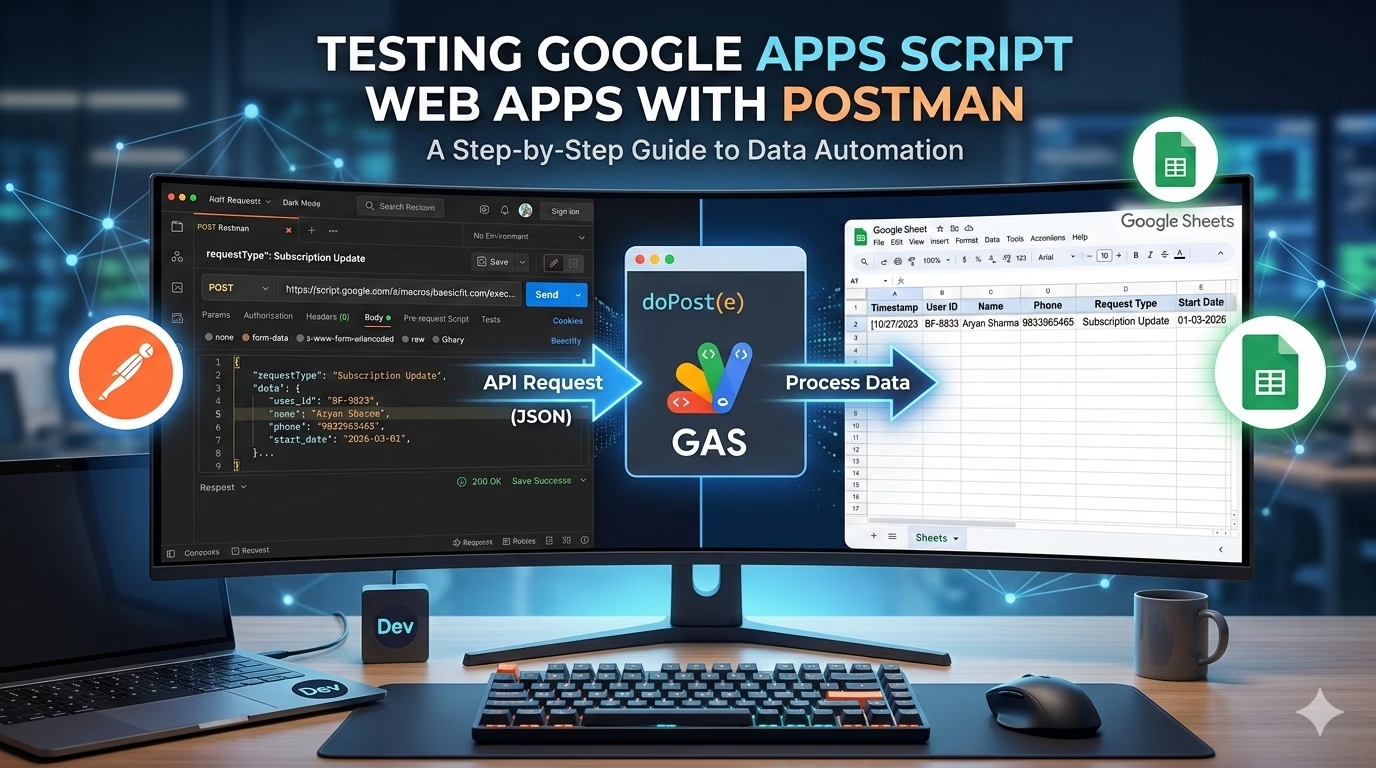
When building automation tools—like the fitness data logger we’ve been working on—waiting for a UI to be finished before testing your backend is a bottleneck. Postman allows you to send “mock” data to your script instantly to ensure your logic is sound.
1. Prepare Your Google Apps Script
Before jumping into Postman, your script must be configured to receive a POST request. Your doPost(e) function should look something like this to handle the JSON data we’re sending:
// JavaScript
function doPost(e) {
  try {
    // Parse the incoming JSON data
    var requestData = JSON.parse(e.postData.contents);
    var data = requestData.data;
    var requestType = requestData.requestType;

    var ss = SpreadsheetApp.getActiveSpreadsheet();
    var sheet = ss.getSheetByName("Sheet1");

    sheet.appendRow([
      new Date(),
      data.user_id || "",
      data.name || "",
      data.phone || "",
      requestType || "",
      data.start_date || "",
      data.end_date || "",
      data.restart_date || "",
      data.breakfast || "",
      data.lunch || "",
      data.snacks || "",
      data.dinner || "",
      data.notes || ""
    ]);

    return ContentService.createTextOutput("Success").setMimeType(ContentService.MimeType.TEXT);
  } catch (error) {
    return ContentService.createTextOutput("Error: " + error.toString()).setMimeType(ContentService.MimeType.TEXT);
  }
}
Important: The Deployment
- Click Deploy > New Deployment.
- Select Web App.
- Execute as: Me.
- Who has access: Anyone (This is vital for Postman to reach the script without complex OAuth setups during initial testing).
- Copy the Web App URL (it ends in
/exec).
2. Setting Up Postman
Open Postman and create a new request tab. Follow these specific settings:
A. The Request Method & URL
- Method: Set the dropdown to
POST. - URL: Paste your Google Script Web App URL.
B. Headers
Google Apps Script requires the correct content type to parse the data.
- Go to the Headers tab.
- Key:
Content-Type| Value:application/json.
C. The Body (Sample Data)
This is where you define the data for the phone number 999999999.
- Go to the Body tab.
- Select the raw radio button.
- Select JSON from the dropdown menu on the right.
- Paste the following:
{
  "requestType": "Subscription Update",
  "data": {
    "user_id": "1",
    "name": "John Doe",
    "phone": "999999999",
    "start_date": "2026-03-05",
    "end_date": "2026-04-05",
    "restart_date": "2026-04-10",
    "breakfast": "Poha & Sprouts",
    "lunch": "Dal Tadka & Brown Rice",
    "snacks": "Roasted Makhana",
    "dinner": "Paneer Tikka Salad",
    "notes": "Testing Postman integration"
  }
}
3. Handling the Redirect
Google Apps Script sends a 302 Redirect upon a successful POST. Postman usually handles this automatically, but if you run into issues:
- Go to Settings in Postman.
- Ensure Automatically follow redirects is turned ON.
4. Hit Send and Verify
Click the blue Send button.
- The Result: You should see a “Success” message in the Postman response body.
- The Proof: Open your Google Sheet. You should see a new row populated with the timestamp and the data for Aryan Sharma.
Troubleshooting Common Issues
| Issue | Likely Cause | Fix |
| 401 Unauthorized | Permissions issue | Re-deploy script with “Access: Anyone”. |
| Empty Rows | JSON keys don’t match | Ensure data.user_id in script matches "user_id" in Postman. |
| Script Error | Code typo | Check the “Executions” tab in Apps Script for logs. |
Be First to Comment